A-SYNC North
A-SYNC INTERACTIVE ANALYSIS_
[ INITIALIZING SYSTEM ]
A-SYNC TERMINAL v2.4.1 // MENU_INTERFACE
cd ../transliminal
/async/config/menus/

MENUS

System Menu Interface - Settings Configuration

SYSTEM_MENU

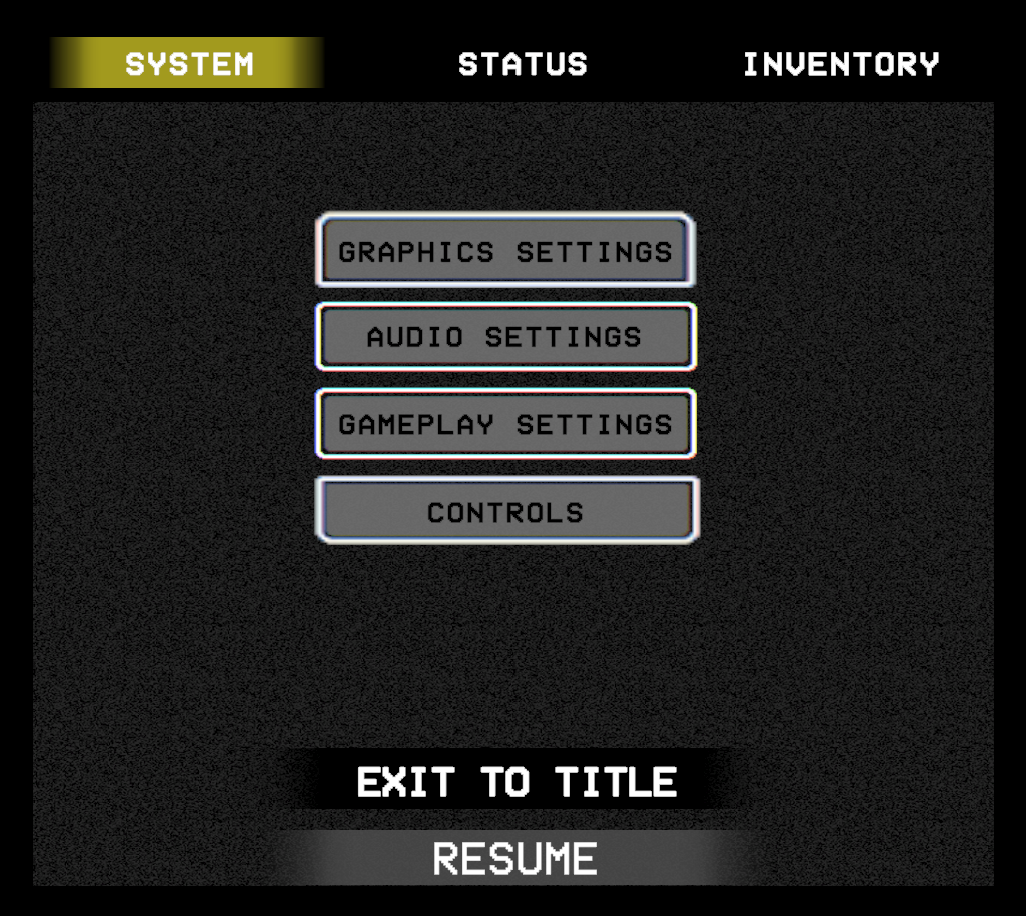
Press Esc during gameplay to open the System Menu. The menu is divided into three tabs: SYSTEM, STATUS, and INVENTORY.

The SYSTEM tab provides access to all game settings and the option to exit.

System Menu showing Graphics Settings, Audio Settings, Gameplay Settings, Controls, Exit to Title, and Resume buttons
System Menu - Main Interface

GRAPHICS_SETTINGS

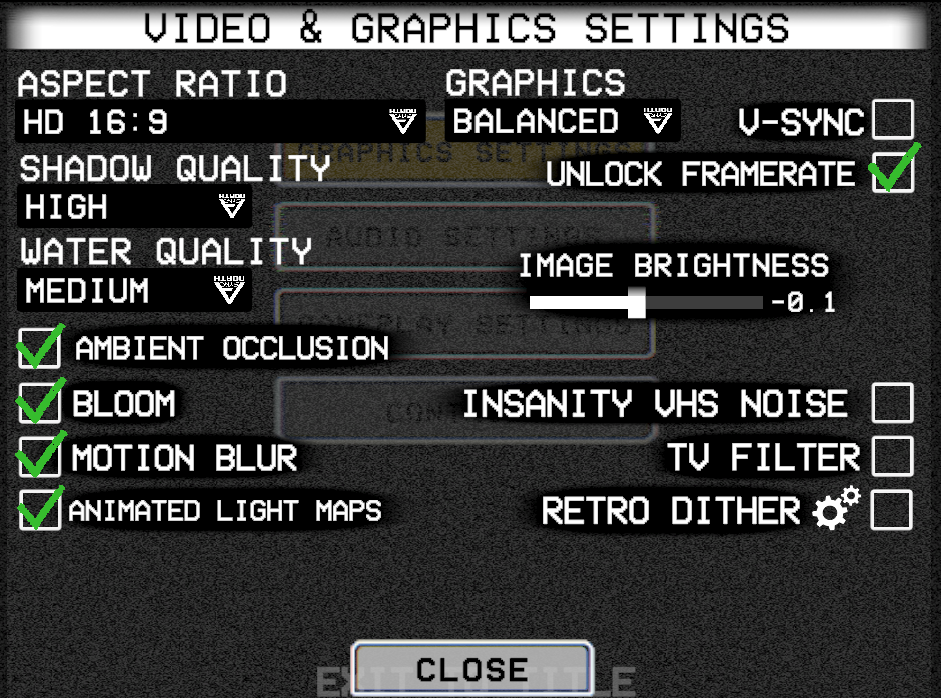
Configure visual quality and display options.

Video and Graphics Settings menu showing aspect ratio, graphics quality, shadow quality, water quality, and various toggle options
Video & Graphics Settings

Display Options

  • Aspect Ratio: Select display aspect ratio (HD 16:9, etc.)
  • Graphics: Overall graphics preset (Balanced, etc.)
  • V-Sync: Synchronize framerate to monitor refresh rate
  • Unlock Framerate: Remove framerate cap

Quality Settings

  • Shadow Quality: Shadow rendering detail (Low/Medium/High)
  • Water Quality: Water effect detail (Low/Medium/High)
  • Image Brightness: Adjust overall brightness

Visual Effects

  • Ambient Occlusion: Soft shadows in corners and crevices
  • Bloom: Glowing light effect
  • Motion Blur: Blur effect during movement
  • Animated Light Maps: Dynamic lighting updates
  • Insanity VHS Noise: Static overlay when sanity is low
  • TV Filter: CRT television scanline effect
  • Retro Dither: Retro-style dithering effect

AUDIO_SETTINGS

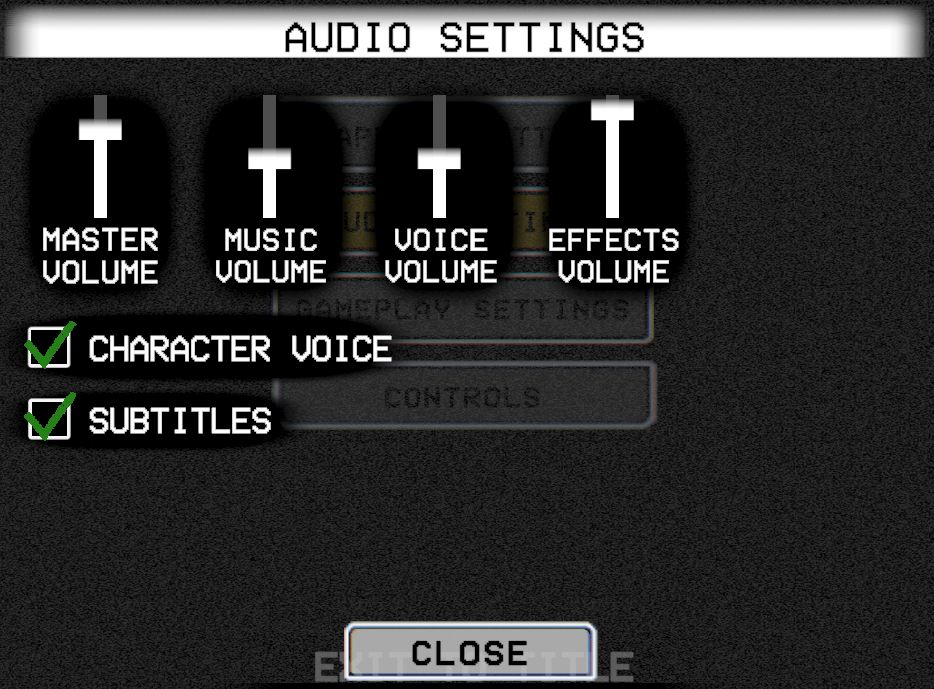
Adjust volume levels and audio preferences.

Audio Settings menu showing volume sliders for Master, Music, Voice, and Effects, plus Character Voice and Subtitles toggles
Audio Settings

Volume Controls

  • Master Volume: Overall audio level
  • Music Volume: Background music level
  • Voice Volume: Character dialogue level
  • Effects Volume: Sound effects level

Audio Options

  • Character Voice: Enable character voice acting
  • Subtitles: Display subtitles for dialogue

GAMEPLAY_OPTIONS

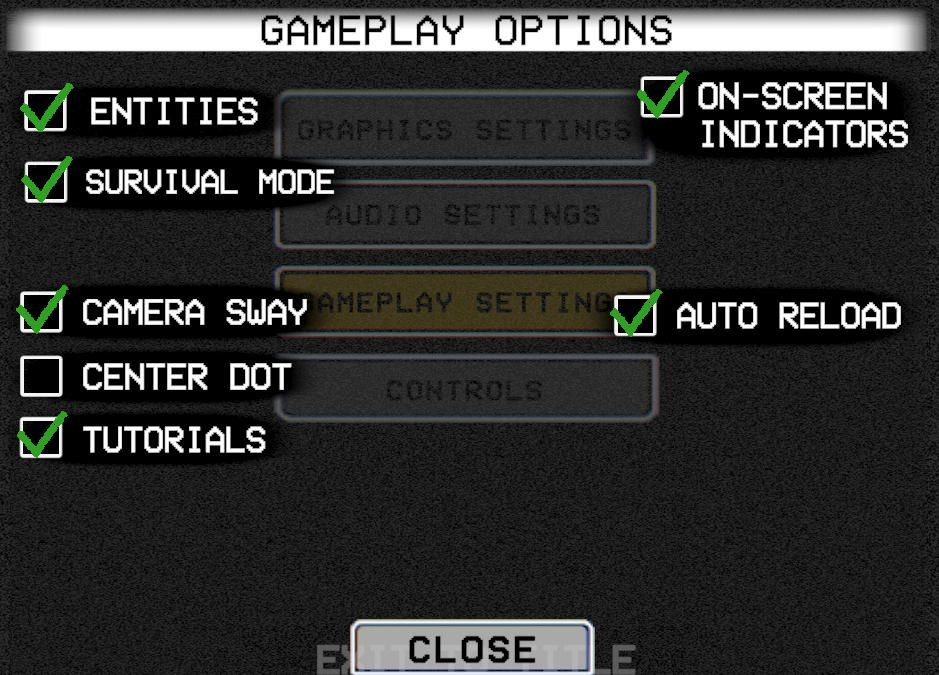
Configure gameplay mechanics and difficulty options.

Gameplay Options menu showing toggles for Entities, Survival Mode, Camera Sway, Center Dot, Tutorials, On-Screen Indicators, and Auto Reload
Gameplay Options

Difficulty Options

  • Entities: Toggle hostile entity spawning
  • Survival Mode: Enable hunger, thirst, and energy mechanics

Camera & UI

  • Camera Sway: Natural camera movement while walking
  • Center Dot: Display crosshair in center of screen
  • On-Screen Indicators: Display objective and navigation hints
  • Tutorials: Show tutorial prompts

Combat

  • Auto Reload: Automatically reload weapons when empty

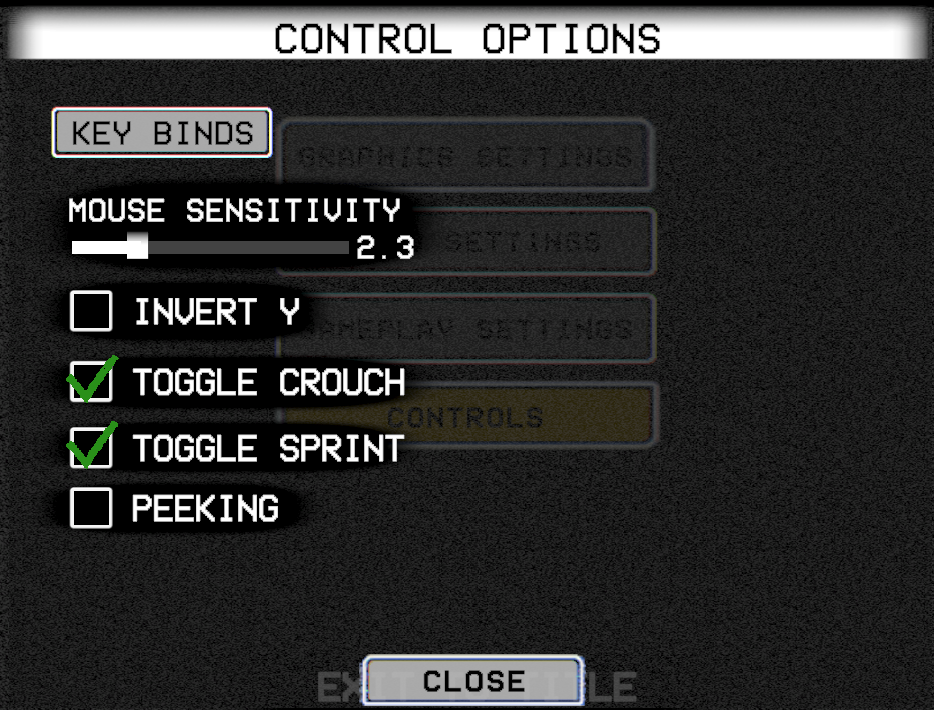
CONTROL_OPTIONS

Customize input settings and control behavior.

Control Options menu showing Key Binds button, Mouse Sensitivity slider, and toggles for Invert Y, Toggle Crouch, Toggle Sprint, and Peeking
Control Options

Input Settings

  • Key Binds: Open keybind customization menu
  • Mouse Sensitivity: Adjust look sensitivity
  • Invert Y: Invert vertical mouse/stick movement

Movement Behavior

  • Toggle Crouch: Press once to crouch instead of holding
  • Toggle Sprint: Press once to sprint instead of holding
  • Peeking: Enable lean/peek controls
See Also: Controls for default keybinds and input reference.

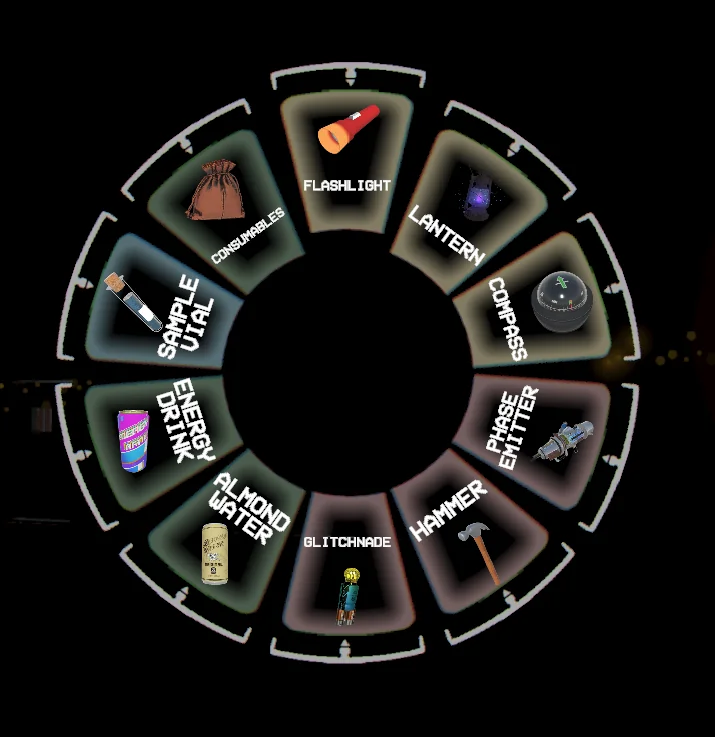
RADIAL_MENU

Press MMB (Middle Mouse Button) to open the Radial Menu for quick access to equipment and consumables without pausing gameplay. Move your cursor toward an item to select it.

Equipment occupies fixed slots while consumables fill the remaining positions based on your current inventory.

Radial Menu showing equipment and consumable slots arranged in a circle
Radial Menu - Quick Access Interface
Gamepad: Open Radial Menu with Left Bumper (LB).

STATUS_MENU

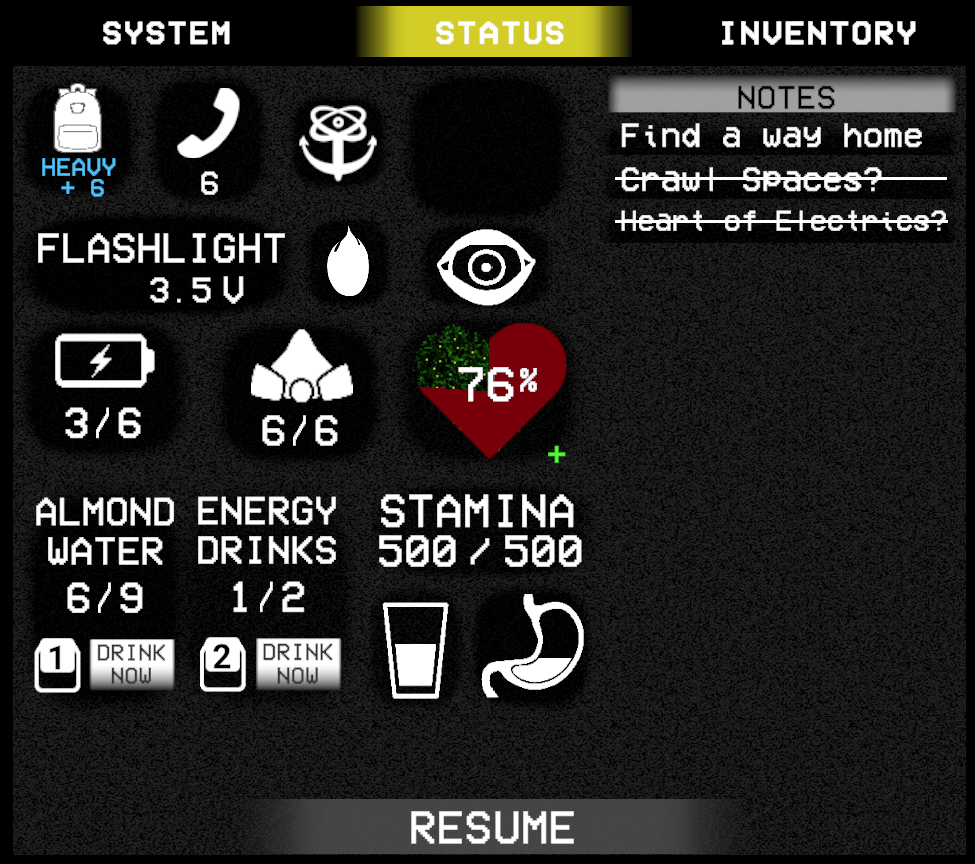
Press and hold Tab to open the Status Menu. This screen displays Victor's current condition including vital statistics, equipped items, and objective notes.

Status Menu showing health, stamina, hydration, and other vital statistics
Status Menu - Vital Statistics

Vital Statistics

  • Health: Heart icon with percentage. Green Mold infection appears as visual corruption when infected.
  • Sanity: Eye icon. Sanity affects visual/audio effects and Drama Mask expression.
  • Stamina: Displays current/maximum stamina for sprinting and actions.
  • Hydration: Water drop icon showing thirst level.
  • Nourishment: Stomach icon displaying hunger level.

Equipment Status

  • Backpack: Shows pack type and weight modifier (e.g., "HEAVY +6").
  • Receiver: Phone icon with signal count for unlocked frequencies.
  • Mask: Respirator icon showing filter charges remaining.
  • Flashlight: Battery voltage level (e.g., "3.5V").
  • Batteries: Battery icon with count (e.g., "3/6").
  • Filters: Filter icon with count (e.g., "6/6").

Quick Consumables

  • Almond Water: Current count with hotkey [1] for quick use.
  • Energy Drinks: Current count with hotkey [2] for quick use.

Notes Panel

The Notes panel in the upper-right displays current objectives. Completed objectives appear crossed out.

INVENTORY_MENU

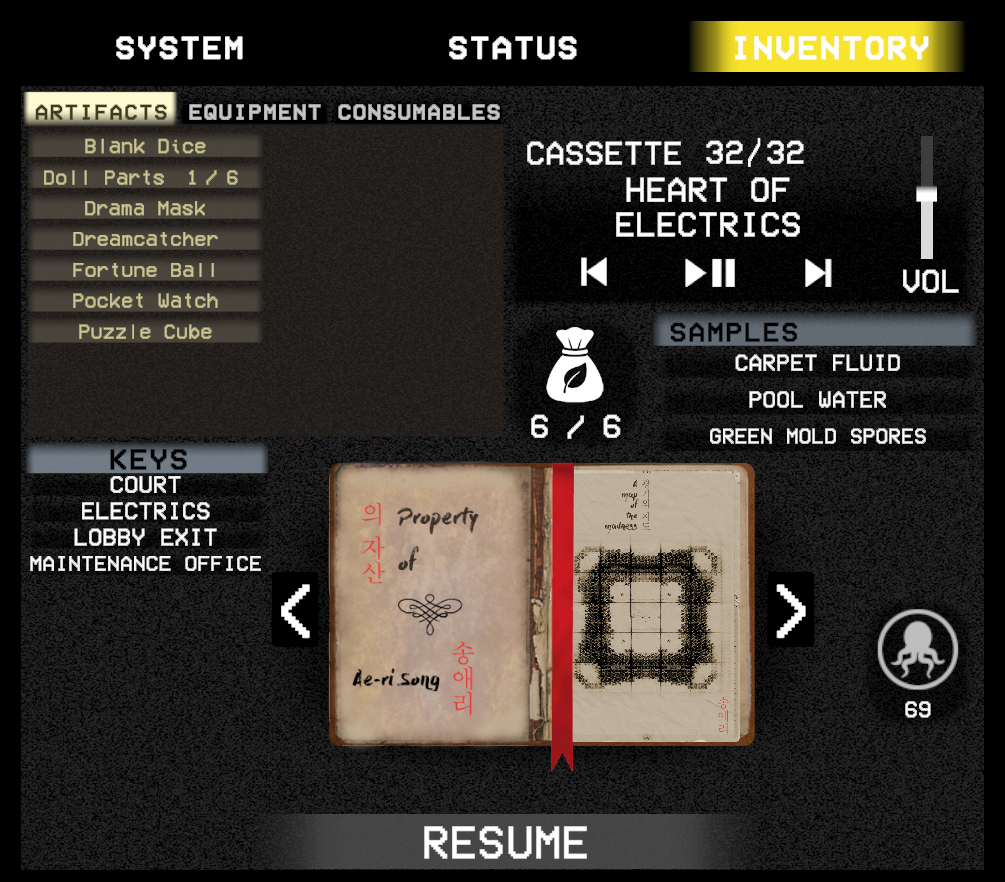
Press I to open the Inventory Menu. Navigate between tabs to manage your collected items, equipment, and documents.

Inventory Menu showing Artifacts, Equipment, Consumables tabs, Keys, Samples, and Sketchbook
Inventory Menu - Item Management

Item Categories

  • ARTIFACTS: Anomalous objects that grant abilities or alter gameplay. Collect to grow stronger across runs.
  • EQUIPMENT: Tools and gear that can be equipped and used actively.
  • CONSUMABLES: Items that can be consumed for various effects including supplies like batteries.

Keys

Keys collected throughout your journey are displayed in the lower-left. Each key opens specific locked doors or containers.

Samples

Collected fluid samples appear in the right panel. Use Test Tubes to gather samples from various sources for crafting or quests.

Cassette Player

The built-in cassette player displays collected audio logs. Use the playback controls to listen and adjust volume.

Sketchbook

Victor's sketchbook contains collected documents, notes, and maps. Navigate pages with the arrow buttons to review discovered information.

Coins

Two-Headed Coins (displayed in bottom-right) serve as currency in the Backrooms for trading with NPCs and vending machines.

> End of menus documentation.